
AI Email Template Generator: The Components That Turn a Prompt Into a Ready-to-Send Email
An AI email template generator is a tool that assembles a complete, ready-to-send email — subject line, body, call-to-action — from a short prompt. A well-built AI email generator can take a one-line brief and return a structured draft in seconds, no blank page required.

Under the hood it is not magic — it is a stack of well-defined components working together. This guide breaks down each part so you know exactly what you are clicking.
What an AI Email Template Generator Actually Is
An AI email template generator is software built on a large language model that converts a plain-language instruction into a finished email template. Instead of starting from a blank editor, the writer describes the goal and the tool returns a subject line, body copy, and a call-to-action already arranged into a template.
From blank page to draft in seconds
An AI email template generator produces a full email template within seconds of a typed prompt, replacing the usual cycle of staring at an empty draft and rewriting the opening line five times. The underlying model has been trained on large volumes of text, which is what lets it recognize the shape of a welcome email, a follow-up, or a promo without being told the structure explicitly. Marketing teams increasingly lean on this kind of automation simply because email production is repetitive: the same request — write a follow-up, write an announcement, write a discount offer — recurs daily across a content calendar.
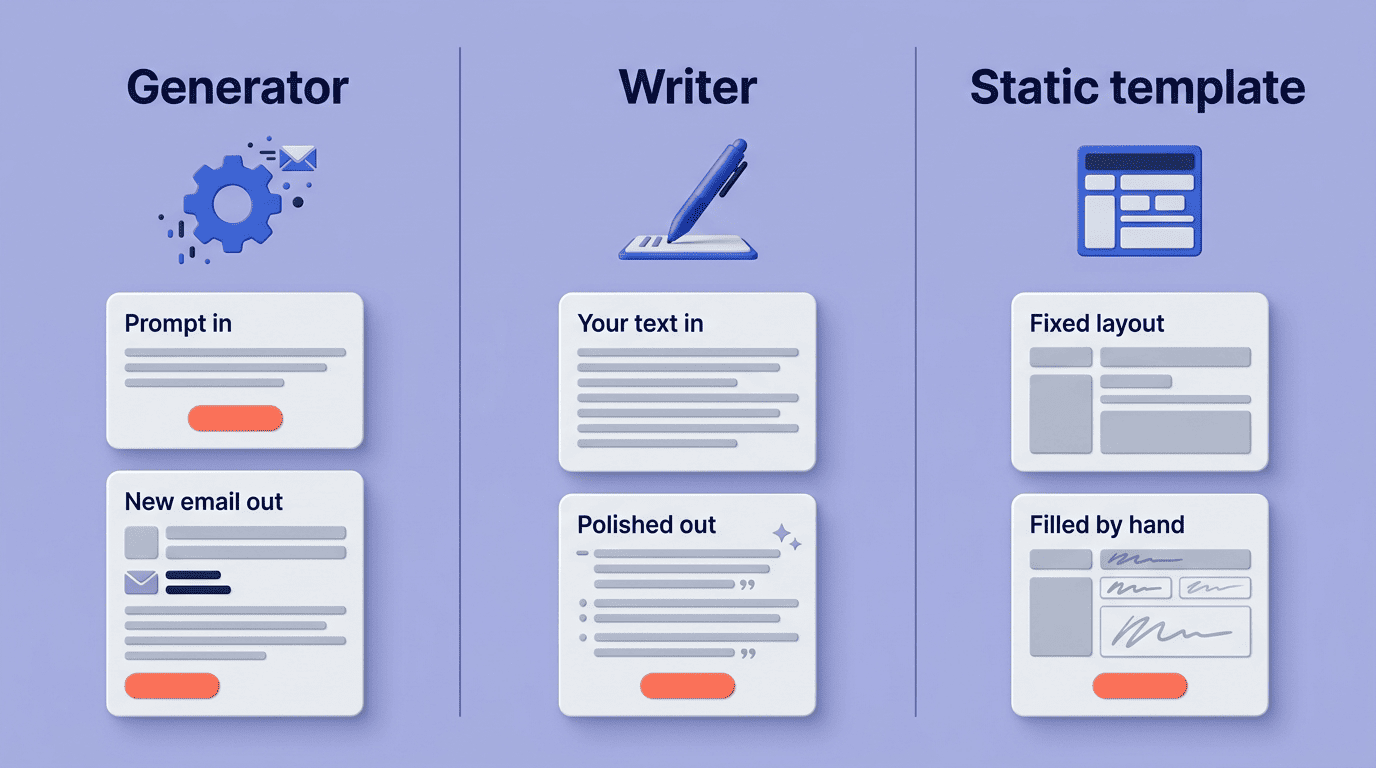
Generator vs. writer vs. static template
A «generator» creates copy from scratch based on a prompt, using the large language model to interpret intent and produce new text every time. A «writer» tool works differently: it edits or improves text you already supply, tightening tone or fixing grammar rather than inventing content. A static template library sits at the opposite end — pre-written layouts you fill in manually, with no model involved at all. An AI email template generator combines the flexibility of the first with the structure of the third, which is why it can output a finished, on-brand draft rather than just corrected prose.
| Tool type | Starting point | Output |
|---|---|---|
| AI email template generator | A short prompt | New template, written from scratch |
| Writer / rewriting tool | Text you already wrote | Edited, polished version of your text |
| Static template library | A pre-made layout | Same layout for every user, filled in by hand |
The Core Components of an AI Email Generator
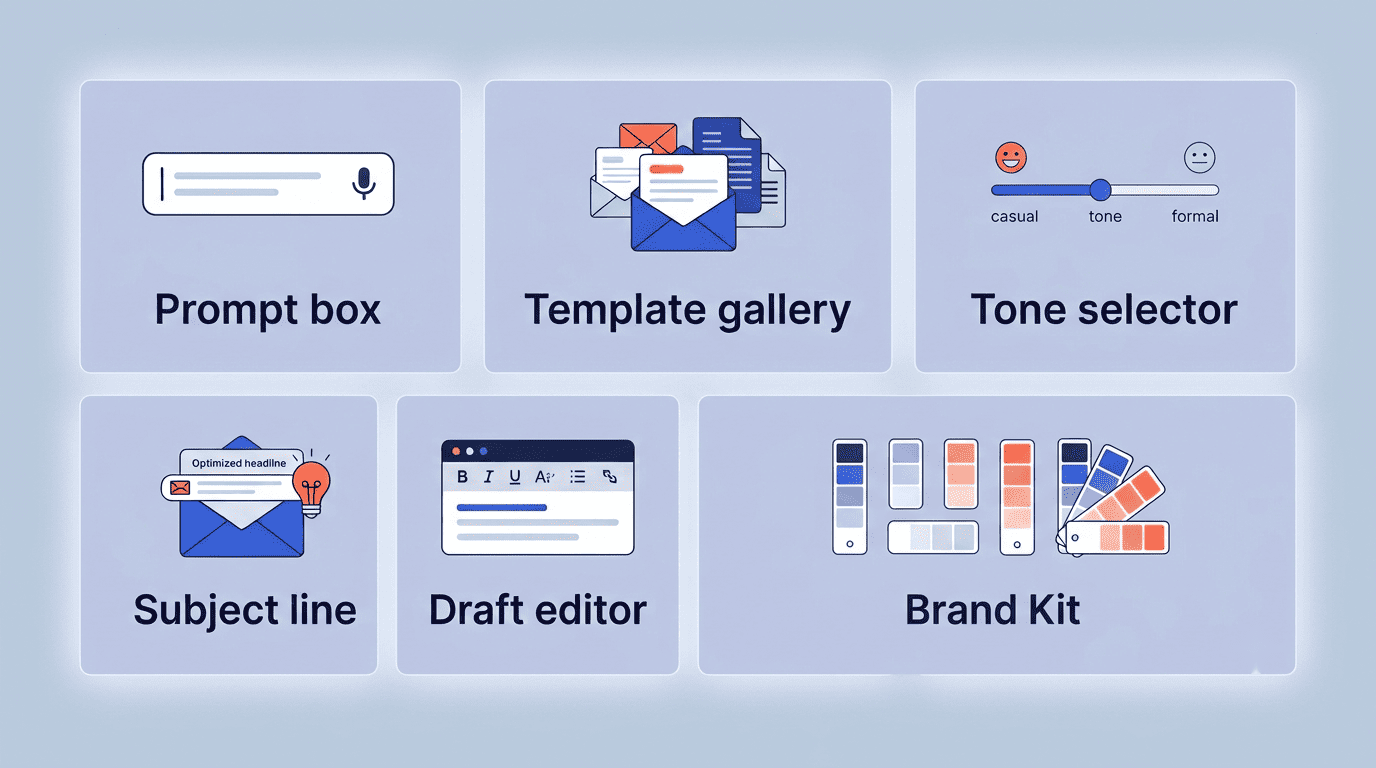
Every AI email generator is built from the same handful of moving parts, even when the interface looks different from tool to tool. Below is what each component does and why it exists.
| Component | What it does |
|---|---|
| Prompt box | Captures your instructions: purpose, audience, tone, key facts |
| Template gallery | Seeds the draft’s structure by email type (welcome, follow-up, promo…) |
| Tone selector | Shifts the copy along a formal-to-casual spectrum |
| Subject line generator | Produces subject lines and preview/preheader text separately from the body |
| Draft editor | Structured, editable canvas where you refine the generated copy |
| Brand Kit | Applies saved colors, fonts, and logo automatically |
1. The prompt box (input layer)
The prompt box is where you describe the email: its purpose, the audience, the key facts to include, and the desired length. Output quality tracks directly with how specific your instructions are — a prompt naming the recipient, the goal, and one or two must-include details produces a far more usable draft than «write a marketing email.»
2. Email-type / template gallery
Most generators open with a gallery of email types to pick from before you even touch the prompt box. A typical gallery includes:
- Welcome and onboarding emails
- Newsletters and lifecycle updates
- Follow-up and lead-nurture messages
- Cold outreach and partnership emails
- Announcements and internal updates
- Promotional and retargeting offers
Picking a type seeds the structure the model works from, so the output already resembles the right kind of email before generation even starts.
3. Tone and style selector
A tone selector shifts the draft along a formal-to-casual spectrum — professional, friendly, persuasive, urgent — without requiring you to rewrite the prompt. This control exists because the same factual content needs a different voice depending on whether it is going to a client, a colleague, or a cold prospect.
4. Subject line and preview generator
Subject-line generation is usually a distinct component from body-copy generation, producing several subject-line options plus preheader or preview text. Since subject lines drive open rates, separating this step lets the tool run multiple short variations quickly instead of committing to one line buried inside the body draft.
5. The generated draft + editor
The output lands in a structured canvas: opening line, body paragraphs, and a call-to-action, all editable inside a drag-and-drop editor. From there, Generate and Copy buttons let you regenerate a section you don’t like or lock in the version you want to send.
6. Brand Kit and personalization variables
A Brand Kit applies your saved colors, fonts, and logo automatically, so every generated template looks consistent with previous sends instead of arriving as generic, unbranded copy. Personalization variables — placeholders that get swapped with real recipient data at send time — sit alongside the Brand Kit and typically cover:
- {first_name} or {last_name}
- {company} or {job_title}
- {order_number} or {product_name}
- {renewal_date} or {expiration_date}
Swapping these in at send time is a large part of why personalized templates consistently outperform one-size-fits-all copy.
How the Components Work Together (Under the Hood)
Most generators run on a large language model trained on text to read your input and output a structured draft. The model does not simply retrieve a stored template — it constructs the email token by token based on patterns learned from the text it was trained on. That model is one piece; machine learning is layered on top to surface formats that have historically performed well, while natural language processing handles the mechanics of turning the model’s output into coherent, grammatically correct, contextually relevant copy rather than a jumble of plausible-sounding fragments.
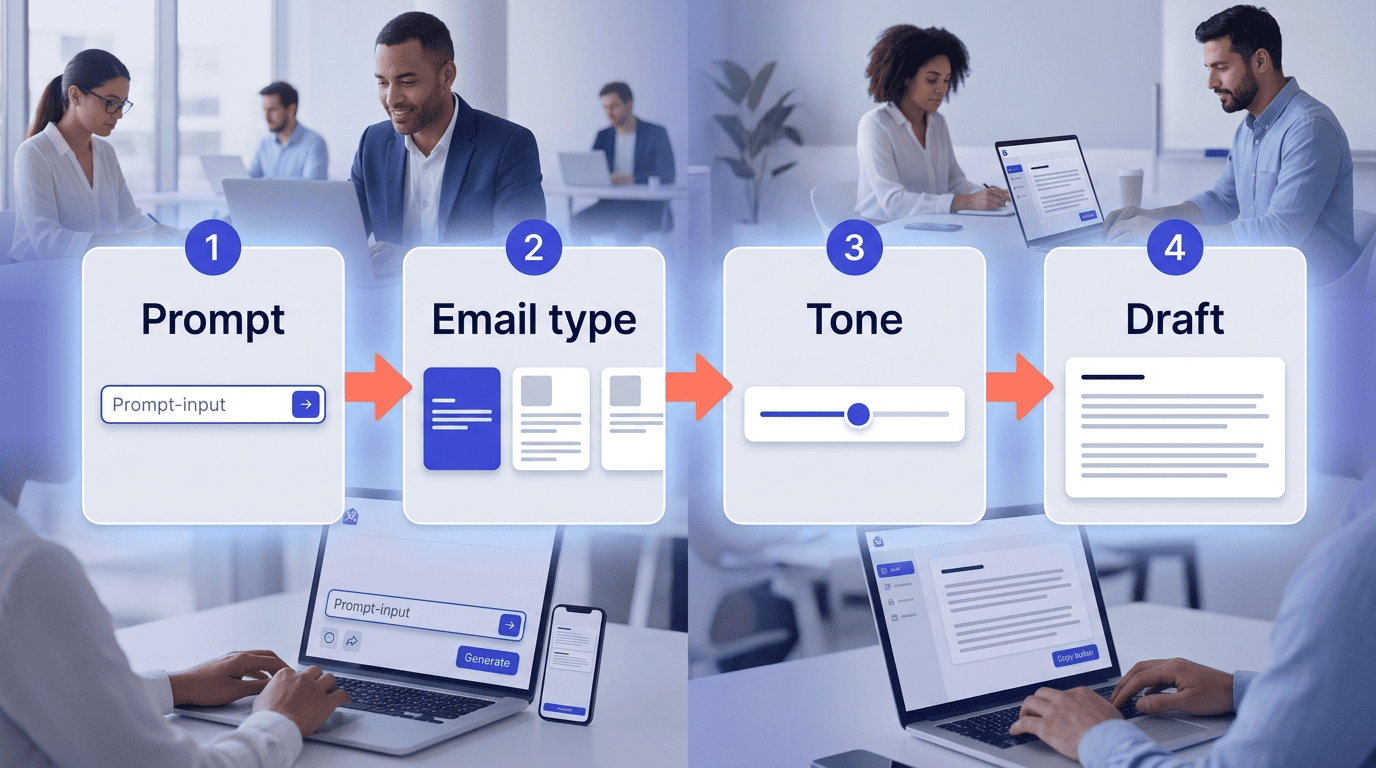
The request flow follows a consistent path: prompt plus chosen email type plus tone selection go into a model call, the model call returns a structured template with subject, body, and call-to-action, and that template lands in the editor where you copy or export it. Each component earlier in this guide maps onto one stage of that flow — the prompt box and gallery shape the input, the tone selector conditions the model call, and the editor is where the raw output becomes a sendable email.
The CAN-SPAM Act doesn’t just apply to bulk email. It covers all commercial messages, which the law defines as «any electronic mail message the primary purpose of which is the commercial advertisement or promotion of a commercial product or service.»
Federal Trade Commission, CAN-SPAM Act Compliance Guide
That definition matters here because a generated template is still a commercial message once it lands in a real inbox, regardless of which tool wrote it — the compliance rules described later in this guide apply the moment you hit send.
Types of Email Templates You Can Generate
An AI email template generator is not limited to one category of message — the same core components can produce anything from a two-line follow-up to a full newsletter layout.
Sales and outreach emails run short and specific. Cold outreach, follow-ups, and partnership proposals typically land in the 50-150 word range, since the goal is a quick, scannable ask rather than a long pitch. The prompt box and tone selector do most of the work here, keeping the copy direct and the call-to-action singular.
Marketing and lifecycle emails lean on the Brand Kit and template gallery. Welcome sequences, newsletters, promotional offers, abandoned-cart reminders, and retargeting messages all draw on saved brand colors and fonts so a subscriber recognizes the sender at a glance, even across a dozen different message types.
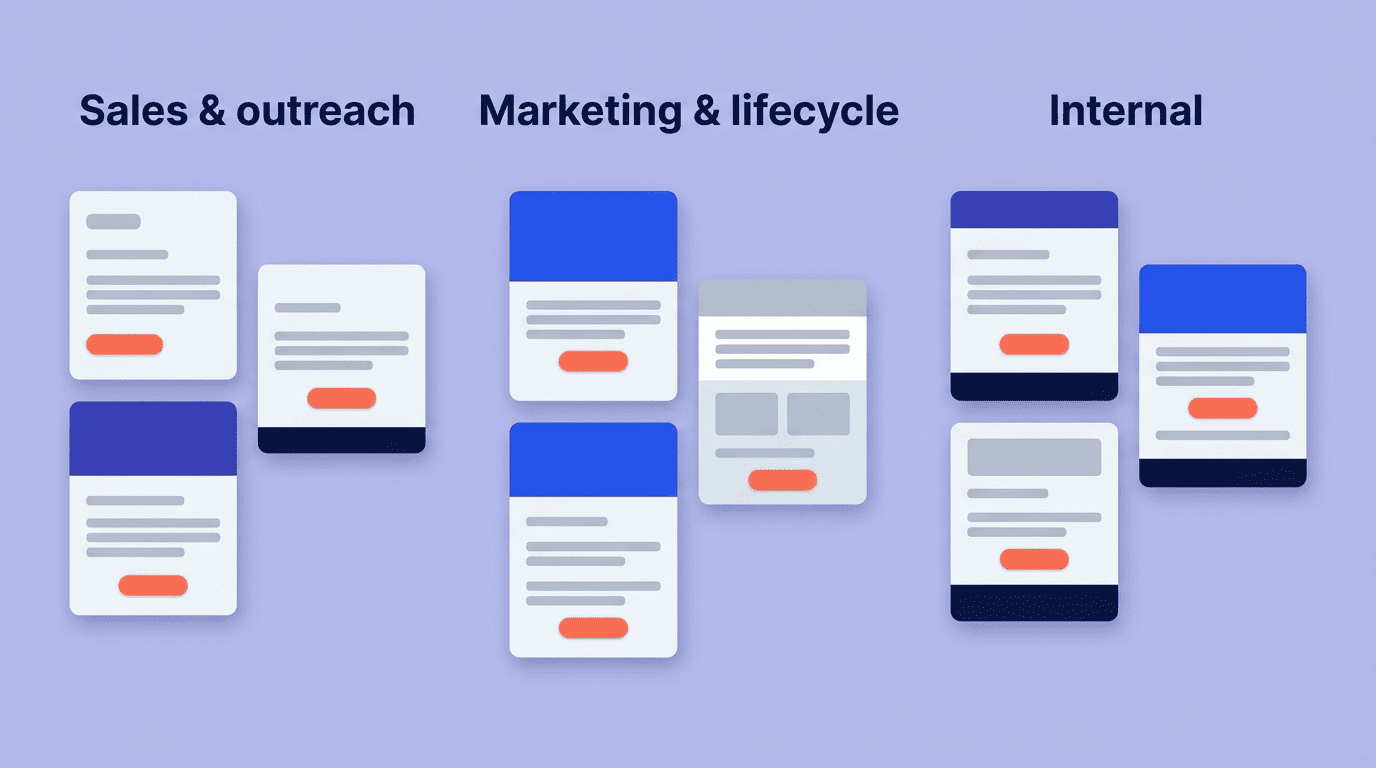
Internal and transactional emails favor a plainer tone. Generators handle this category too, generally with a more formal or neutral tone-selector setting since these messages carry less persuasion and more information:
- Company announcements and policy updates
- Job-application rejection notices
- Internal status or project updates
- Service apology or outage notices
- Payment and invoice reminders
Choosing and Getting the Most From a Generator
The output quality of any AI email template generator depends less on the tool and more on how it is used. Two habits separate teams that get consistently usable drafts from teams that regenerate the same prompt ten times.
Write a strong prompt
A specific prompt produces a specific draft; a vague one produces generic filler that needs heavy editing. Use this sequence when writing a prompt for a new template:
- State the recipient and their relationship to you (customer, cold lead, colleague).
- Name the single goal of the email — book a call, announce a feature, say sorry for a delay.
- List the tone you want from the tone selector (formal, friendly, urgent).
- Add two or three facts the draft must include (a date, a price, a feature name).
- Set a rough length so the output isn’t three times longer than you need.
- Generate the draft, then regenerate just the subject line if the body is good but the subject is flat.
- Move the result into the editor for a final pass before sending.
Keep human oversight and stay compliant
No generated draft should go out unread. Before scaling any send, run through a short compliance and quality pass:
- Confirm header information (from-name, reply-to) is accurate and not misleading.
- Check the subject line matches the body — no bait-and-switch.
- Verify a working, honored opt-out link is present.
- Confirm GDPR consent basis if any recipient is in the EU.
- Run an A/B test on the subject line or call-to-action before a full send.
The FTC’s CAN-SPAM compliance guide spells out the header, subject-line, and opt-out requirements in detail — every one of those checks maps directly to a rule in that guide.