
How to Control Tone in an AI Email Generator: Formal, Friendly, or Persuasive in One Click
An AI email generator doesn’t just write your email — it lets you set exactly how it should sound, from crisp and formal to warm and friendly. Grammarly defines tone as «the feeling or attitude that the email conveys,» and getting it wrong can make the same words read as hostile or cold. This guide shows what tones the leading generators offer, how the tone selector and prompt controls work, and how to pick the right register for each recipient.

What «tone» means in email — and why it makes or breaks the message
Tone is the layer underneath the words — the impression a message leaves before the reader has even processed what it says. It decides whether a request sounds like a favor or a demand, and whether a follow-up sounds patient or annoyed.
Grammarly defines it plainly: «The tone of an email is the feeling or attitude that the email conveys.» It can be confident, enthusiastic, formal, direct, or somber depending on your goal.
The tone of an email is the feeling or attitude that the email conveys.
Grammarly
Seven elements carry that attitude: word choice («please,» «thank you»), sentence length, punctuation, sign-offs (formal «Regards»/»Best» vs. casual «Thanks»/»Cheers»), greetings, emoji, and overall email length. Because email lacks facial cues and voice, tone has to be built deliberately from those signals — otherwise a message can land as harsher than intended. A few habits reliably push a draft toward hostile territory:
- All caps used for emphasis instead of bold or italics.
- Multiple periods in place of a reply, with no softening words around them.
- No greeting or sign-off at all, so the message opens and closes abruptly.
- Exclamation marks used sarcastically rather than for genuine enthusiasm.
That is exactly the gap an AI email generator’s tone control closes — it applies the right combination of these signals automatically once you tell it which register you want.
The tone options AI email generators give you
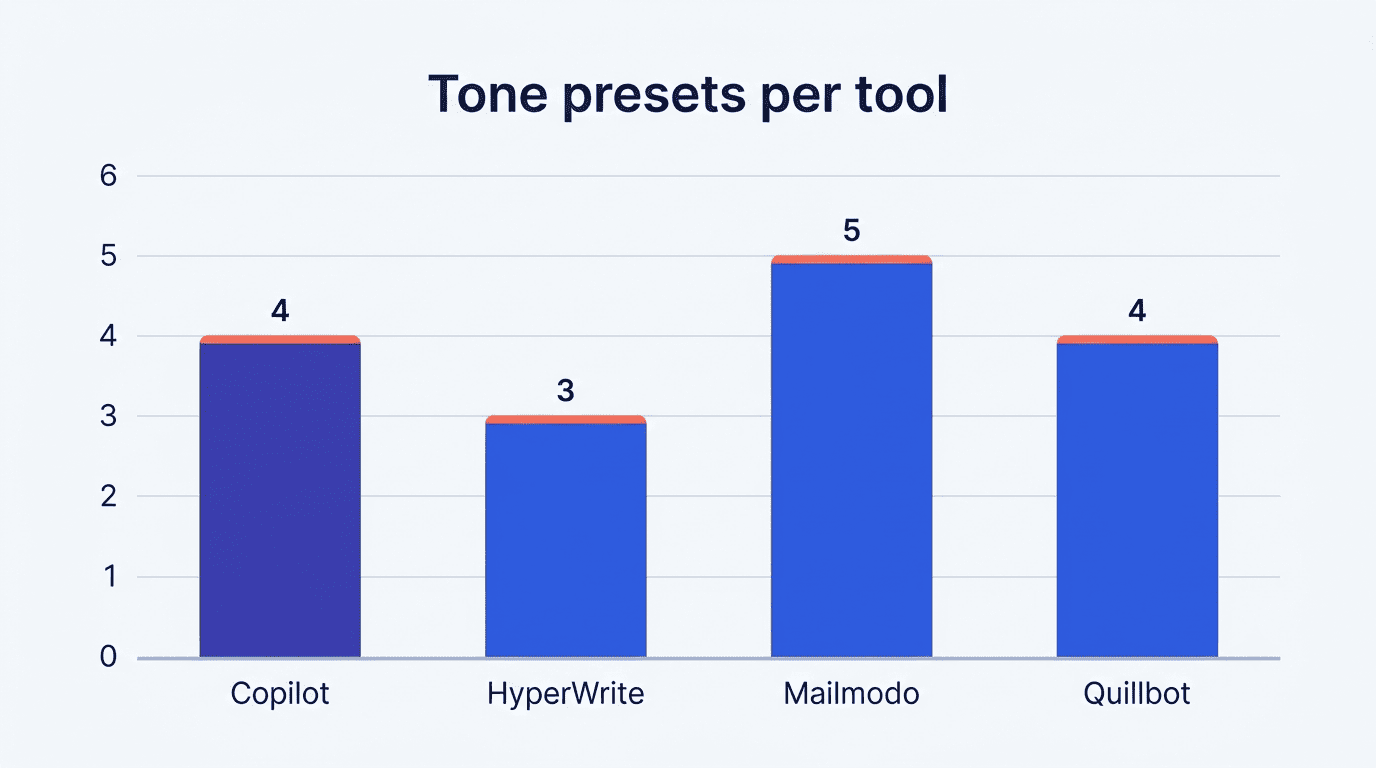
Most generators converge on a similar set of presets, though the exact count and naming vary by tool. The table below compares what a handful of well-known writers offer out of the box.
| Tool | Tone presets offered |
|---|---|
| Microsoft 365 Copilot (Outlook) | Formal, friendly, direct, thoughtful |
| HyperWrite Email Tone Converter | Formal, less formal, conversational |
| Mailmodo Tone Rewriter | Formal, informal, enthusiastic, sincere, persuasive |
| Quillbot AI Email Writer | Friendly, formal, persuasive, casual |
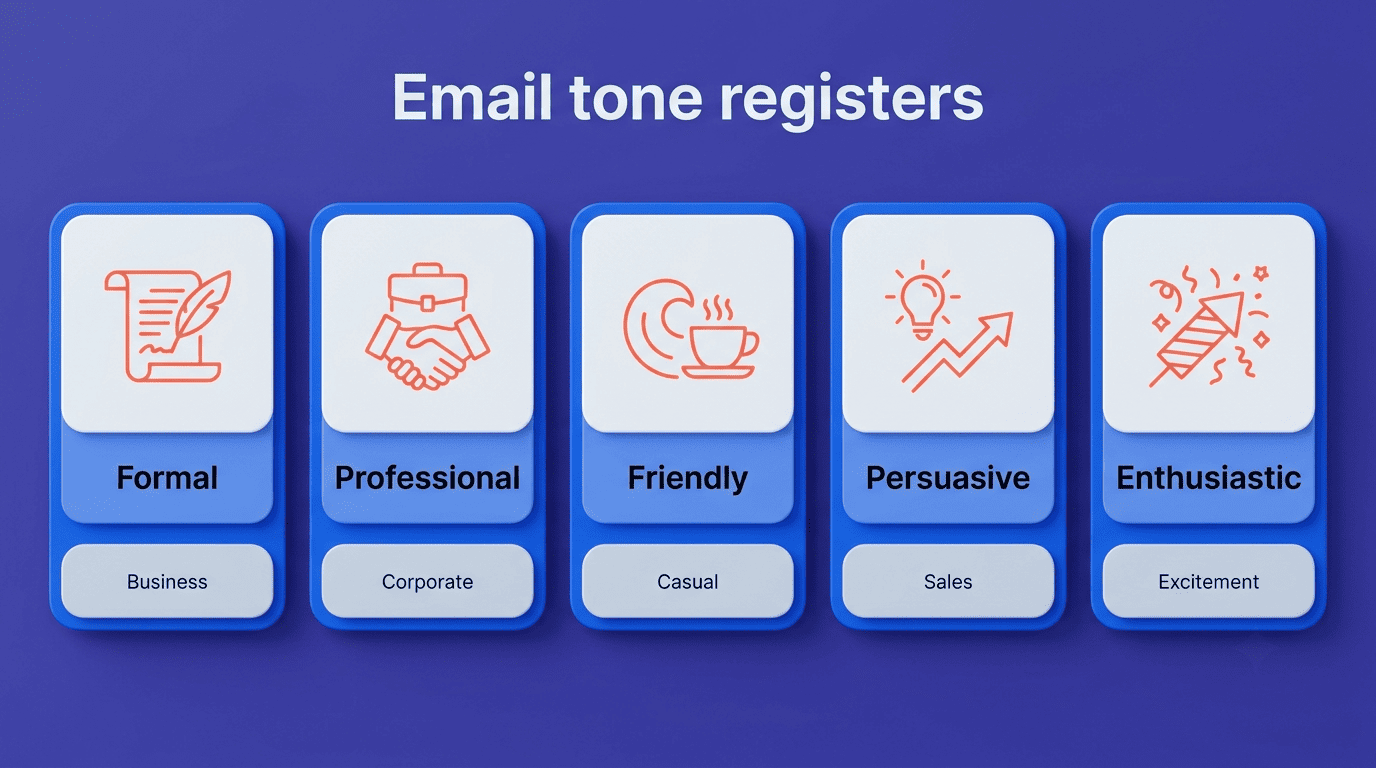
Across tools the reliable core is professional/formal, friendly/casual, persuasive, and enthusiastic — everything else is a variation on those four registers.
Formal suits official, legal, or first-contact messages, where the relationship hasn’t been established yet. Professional covers everyday business correspondence — neutral, courteous, and free of slang. Friendly/casual fits colleagues and warm follow-ups where familiarity is already assumed. Persuasive is built for sales, pitches, and asks that need to move someone to act. Enthusiastic carries celebrations, good news, and thank-yous, where warmth is the point rather than a risk. Picking the register is half the job; the AI email generator tool writes the words to match once you have.
Input and controls: how you actually set the tone
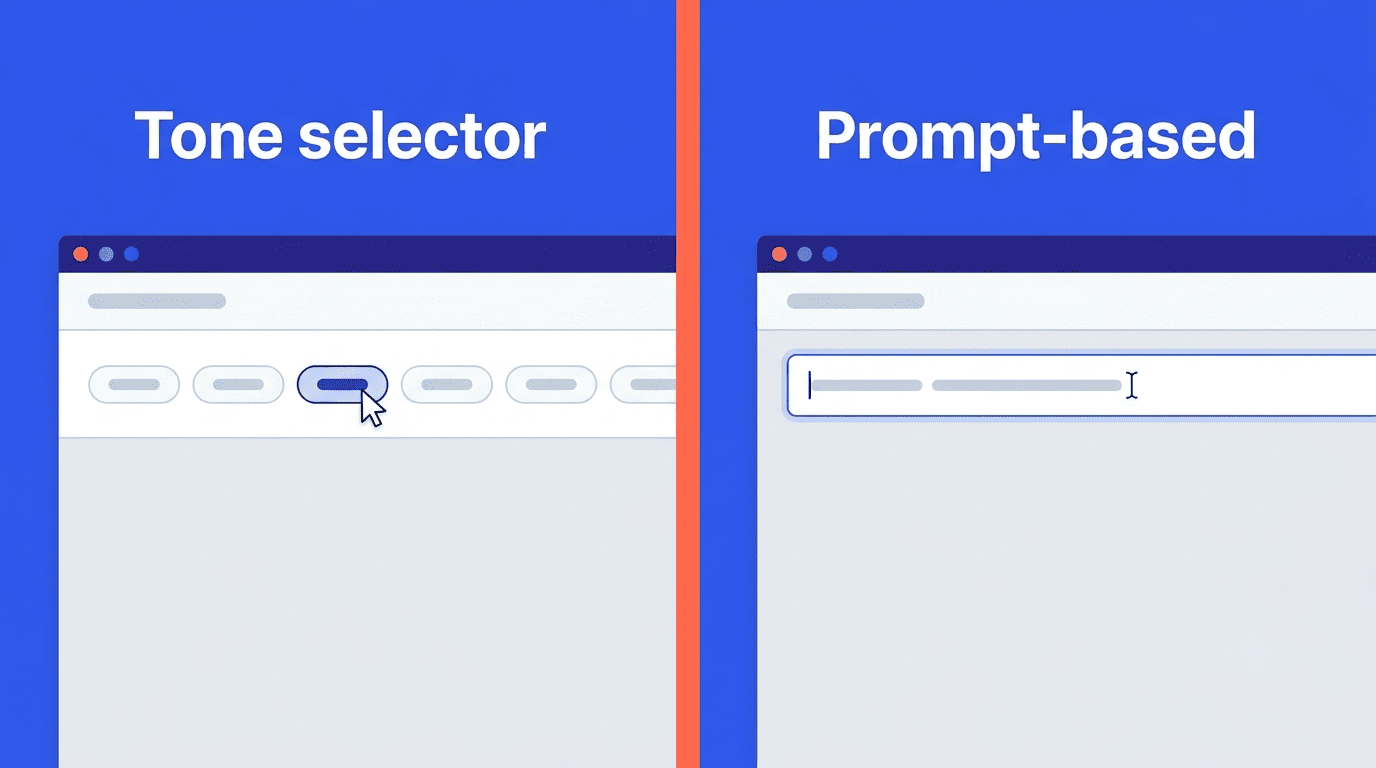
There are two ways to hand a generator the tone you want, and most tools support at least one of them well.
Method 1 — the tone selector (dropdown / one click)
The fastest path: describe the email, then pick a tone from a selector before generating. Microsoft 365 Copilot’s approach is representative — the tool lets users «choose your tone with a click.» You keep your inputs (recipient, purpose, key facts) and just switch the register; the draft regenerates in that voice without you retyping anything.
Method 2 — prompt-based tone control
When there’s no dropdown, or when a preset doesn’t quite fit, you set tone in words instead. Quillbot users prompt «write in a professional tone» or «sound friendly and approachable,» and can later adjust «tone, formality, and details so it sounds like you.» Prompting also unlocks finer shades that fixed menus don’t list — «warm but concise,» or «firm but polite.»
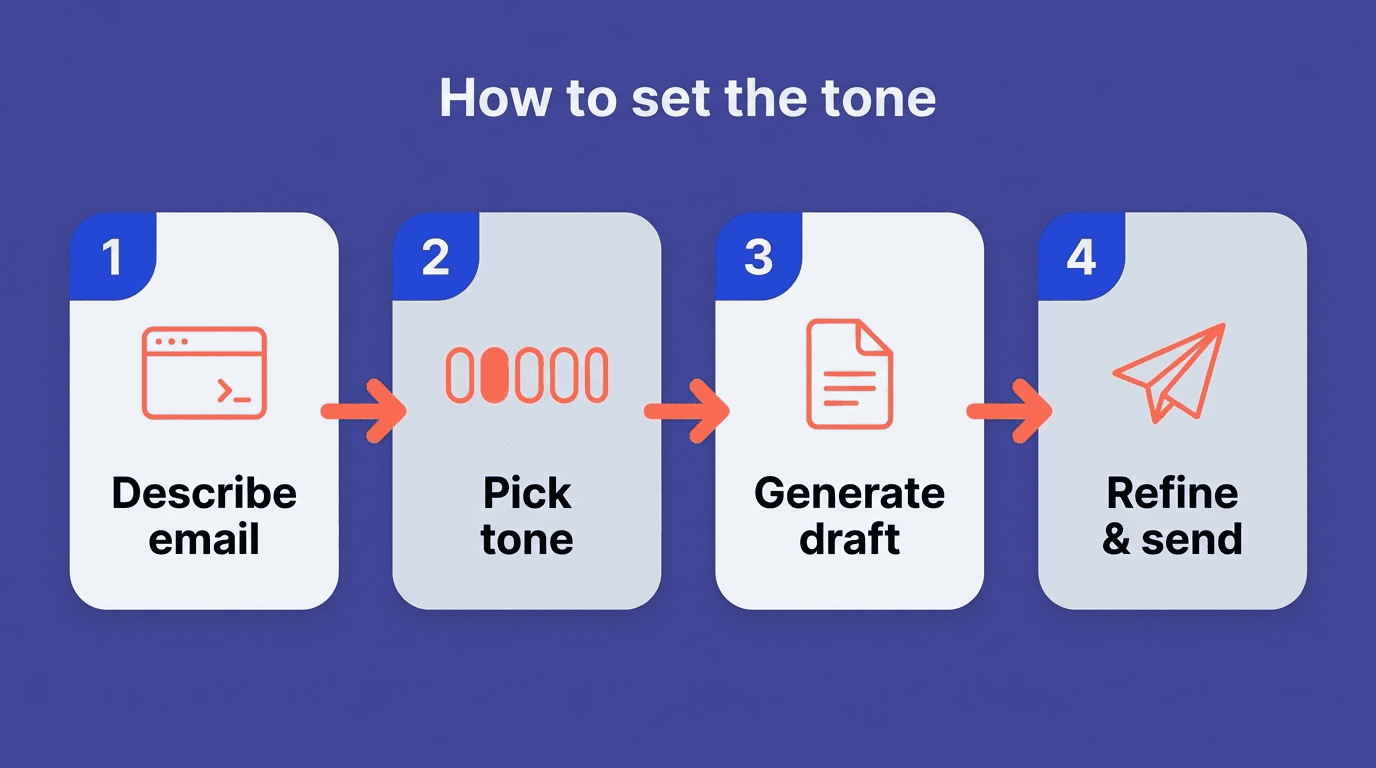
Here’s a short sequence for getting a tone-accurate draft on the first try:
- Draft your core message — recipient, purpose, and the two or three facts that must be in the email.
- State the relationship — client, teammate, stranger — since that changes the baseline formality more than the tone label does.
- Pick a preset from the selector, or type the tone directly into the prompt if no selector exists.
- Generate the draft and read it once for register, not just content.
- If it’s close but not quite right, add a qualifier («a bit warmer,» «less formal») rather than starting over.
- Adjust the sign-off and greeting by hand if the body’s tone is right but the bookends still feel off.
- Send once the register matches how you’d actually speak to that person.
Give the AI the right inputs
Tone lands better when you also supply the recipient, the relationship, and the purpose. «Write to a client I’ve never met» produces a more formal draft than «write to a teammate» even at the same tone setting, because the generator is inferring formality from context as well as from the preset you chose. The inputs that move the needle most are:
- Who it’s for — a name and role, even a rough one («a vendor,» «my manager»).
- The relationship — first contact, long-time colleague, or somewhere in between.
- The purpose — asking, informing, apologizing, or celebrating.
- Any facts that must appear — a date, a number, a link — so the tone setting doesn’t crowd out the content.
| Method | Best when | Example prompt or click |
|---|---|---|
| Tone selector | A fixed preset already fits the message | Click «Formal» before generating |
| Prompt-based | You need a blend a menu doesn’t offer | «Sound firm but polite about the deadline» |
Matching your personal or brand voice
Beyond fixed presets, some of the more advanced tools adapt to how you write rather than to a generic label.
Quillbot can match a user’s personal or brand style directly from sample text, and WriteMail.ai lets users customize tone, style, length, and more so messages sound authentically like them rather than like a template. For teams, locking a shared brand voice keeps every rep’s email on-register regardless of who’s sending it — a support agent and a sales rep end up sounding like the same company, not two different people. A locked brand voice is worth setting up once a team notices:
- Customer replies vary wildly in warmth depending on who wrote them.
- New hires need repeated coaching on «how we sound» in email.
- A single account gets messages from support, sales, and billing that read like three different companies.
- Escalations get worse because an anxious customer received a curt, template-sounding reply.
AI sets the register instantly, but the sender still owns the final read. Skim the draft against the relationship with the recipient, adjust a sign-off or a missing «please,» and send. A free AI email generator gets a message roughly 90% there in seconds; human judgment closes the last stretch — the part that actually knows the recipient.
Best practices for choosing the right tone
Grammarly’s published guidance on tone maps cleanly onto how a tone selector should be used in practice: know your audience, consider the context, avoid offensive language, don’t ramble, be direct, limit exclamation marks and emoticons, proofread before sending, and stay positive and polite throughout.
- Default to formal or professional with a new contact, and only relax the register once familiarity is established.
- Match urgency to punctuation — a single exclamation mark reads as enthusiasm, three read as pressure.
- Re-read a persuasive draft as the recipient would, since a pitch that feels confident to the sender can feel pushy to a stranger.
- Keep sign-offs consistent with the body — a warm message with a curt «Regards» undercuts itself.
When in doubt with a new contact, default to professional and dial warmth up from there — it’s easier to warm up in a follow-up than to walk back over-familiarity in a first message.