
AI Email Generator From a Prompt: The Inputs and Controls That Shape Your Draft
An AI email generator from a prompt turns a one-line description into a finished email — but the quality of that draft depends entirely on what you type and which controls you set. Under the hood, most tools route your prompt through a large language model trained on huge volumes of text, which is why vague input tends to produce vague output.

This guide walks through exactly what goes into the prompt box and every control that shapes the output — tone, length, language, context — so your first draft is close to send-ready.
How Generating an Email From a Prompt Works
Every AI email writer follows the same basic mechanic: you describe what you need in plain language, an AI email assistant drafts the message, and you review it before sending. The generator takes its input directly from the prompt you type, then produces an email draft as output — there’s no separate «training» step or account setup required on most tools. The engine underneath is a large language model, the same category of technology behind general-purpose chatbots, adapted here to a narrower writing task.
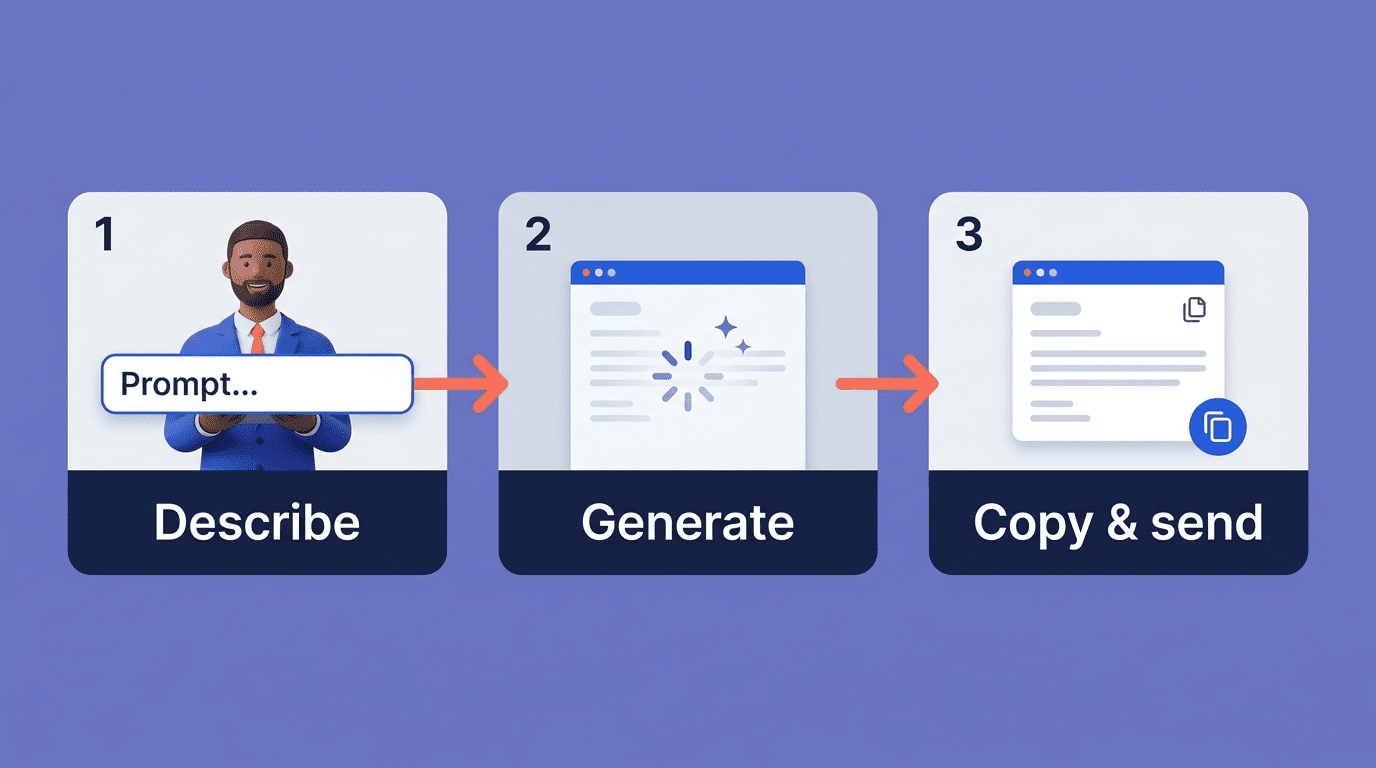
The three-step flow
Across the major tools, the workflow rarely changes:
- Describe the email in plain language — who it’s for, what it’s about, and how it should sound.
- The AI generates a draft in seconds, using the prompt as its only source of context (plus any pasted reply text).
- You copy, edit, and send — most generators treat the output as a starting point, not a finished product.
Scale varies by provider but the pattern holds: WriteMail.ai reports more than 500,000 users and over 10 million emails generated, while Mailmeteor cites roughly 6 million professionals using its writer. The mechanism is identical regardless of user count — describe, generate, copy.
What happens between prompt and draft
Once you submit a prompt, it’s fed to a large language model that constructs the email sentence by sentence, predicting the most plausible continuation given your instructions. This is why specificity pays off directly in output quality. OpenAI’s own prompt-engineering guidance for its models makes the same point about any LLM-driven writing task:
Include details in your query to get more relevant answers.
OpenAI, Prompt Engineering Guide
A one-word prompt like «follow-up» forces the model to guess at recipient, purpose, and tone. A prompt that names all three removes the guesswork and produces a draft closer to what you’d write yourself.
What to Put in the Prompt (The Input)
The prompt box is the only real input most generators expose, so what you type there does more work than any dropdown menu. A prompt should include, at minimum, who the recipient is, what facts they need to know, and what you want to happen next.
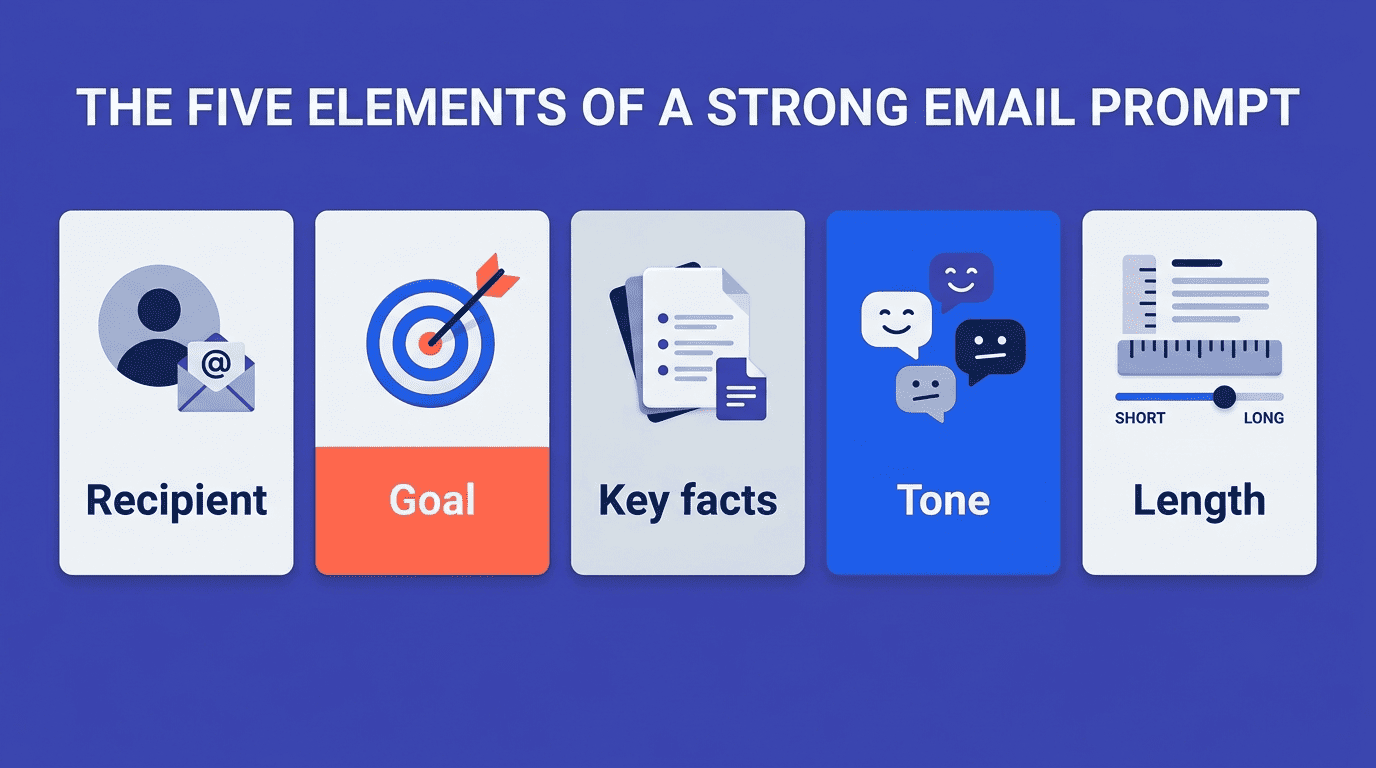
The five elements of a strong prompt
Name the recipient or audience. Whether it’s a client, a colleague, or a stranger you’re cold-emailing, the model needs to know who it’s addressing — this alone changes formality and word choice. Grammarly structures this as a two-step input, first asking for the audience, then for supporting details.
State a single goal. One email, one purpose — a reminder, a follow-up, an introduction. Mixing two goals in one prompt tends to produce a muddled draft.
List two or three must-include facts. Dates, amounts, project names — anything the model can’t invent needs to be spelled out explicitly.
Set the desired tone. Formal, friendly, direct — say it in the prompt even if a separate tone control also exists.
Give a rough length. A word count or sentence count keeps the draft from running long. Some tools expose this as explicit structured fields rather than free text: Toolsaday, for example, separates purpose (up to 10,000 characters), subject line (up to 100 characters), and recipient/sender name (up to 1,000 characters) into distinct boxes.
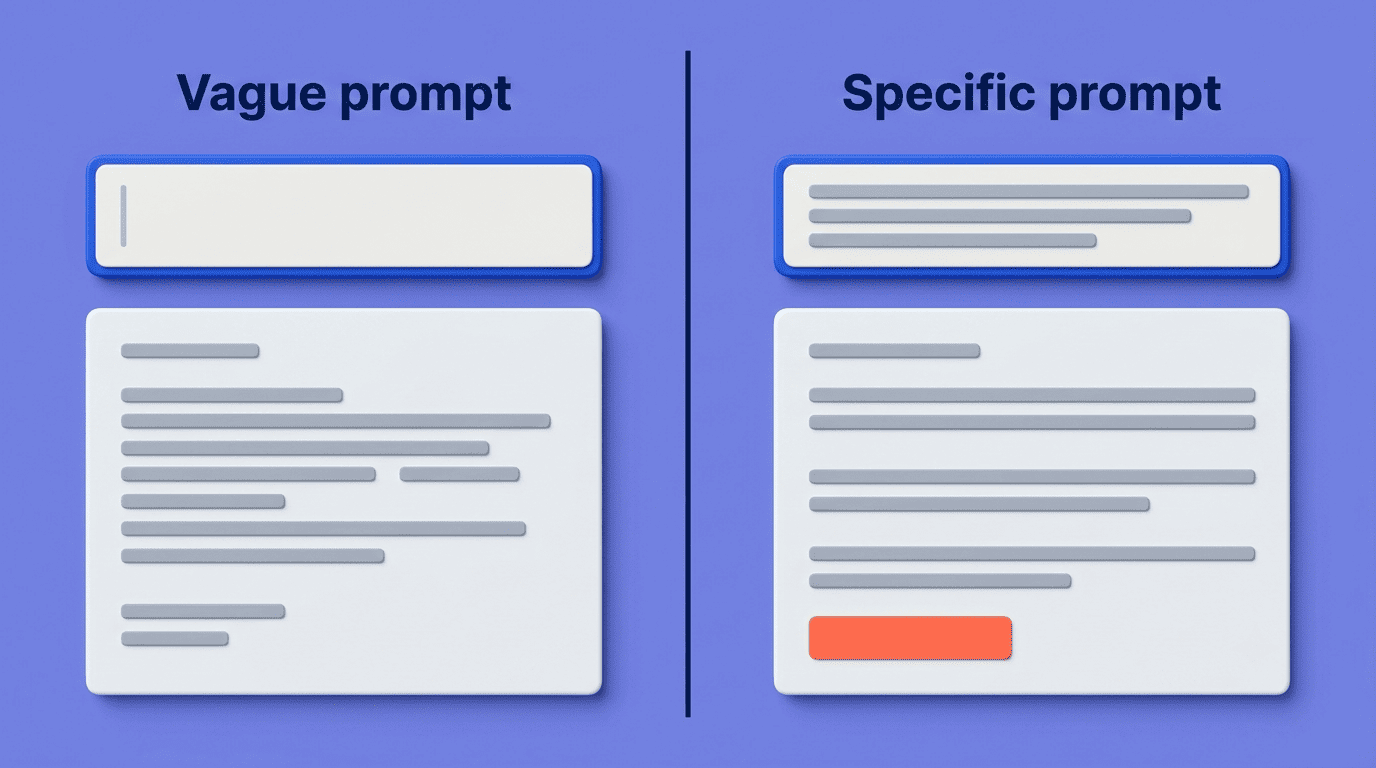
Prompt examples that work
The gap between a vague and a specific prompt is the single biggest factor in draft quality. Mailmeteor’s own example prompt reads: «Write a 3-sentence friendly follow-up in Spanish» — recipient tone, length, and language are all packed into one line. A similar pattern works for business use: «Polite reminder to a client about an overdue invoice, formal, 80 words.» Compare that to a vague prompt like «write a follow-up email,» which gives the model almost nothing to anchor on and forces it to fill in recipient, tone, and length with guesses.
| Prompt style | Example | Result |
|---|---|---|
| Vague | «Write a follow-up email» | Generic tone, unpredictable length, no context |
| Specific | «3-sentence friendly follow-up in Spanish» | Matches tone, length, and language exactly |
| Structured (field-based) | Purpose + subject + recipient entered separately | Consistent formatting, less prompt-writing skill needed |
The Controls That Shape the Output
Beyond the prompt itself, most generators expose a handful of controls that adjust the draft without you having to rewrite the instructions each time. These typically cover tone, length, language, and format.
Tone
The tone selector is the most common control across generators, and it shifts word choice and sentence structure without you touching the prompt. Mailmeteor offers formal, friendly, direct, and concise presets. HelpDesk goes further with six: Helpful, Sales, Informative, Casual, Polite, and Formal. Appointo covers a narrower set — Professional, Friendly, Casual, and Persuasive — enough to handle most everyday business email.
Length
Length control keeps drafts from running too long or too short for the context. Toolsaday implements this as a slider spanning roughly 50 to 500 words, while Mailmeteor handles it through the prompt itself — specifying a word or sentence count directly in your instructions. Either approach works; the slider is faster, the prompt-based method is more precise. Most business emails land on the shorter end of that range, since long messages are less likely to get read in full.
Language and format
A language selector lets you generate directly in the recipient’s language instead of writing in English and translating afterward. WriteMail supports more than 30 languages, and both Quillbot and Mailmeteor offer multi-language generation as a core feature. Format control, where available, chooses between Plain Text and HTML output — Toolsaday exposes this explicitly, which matters if the draft is headed into an email client that renders HTML differently from plain text.
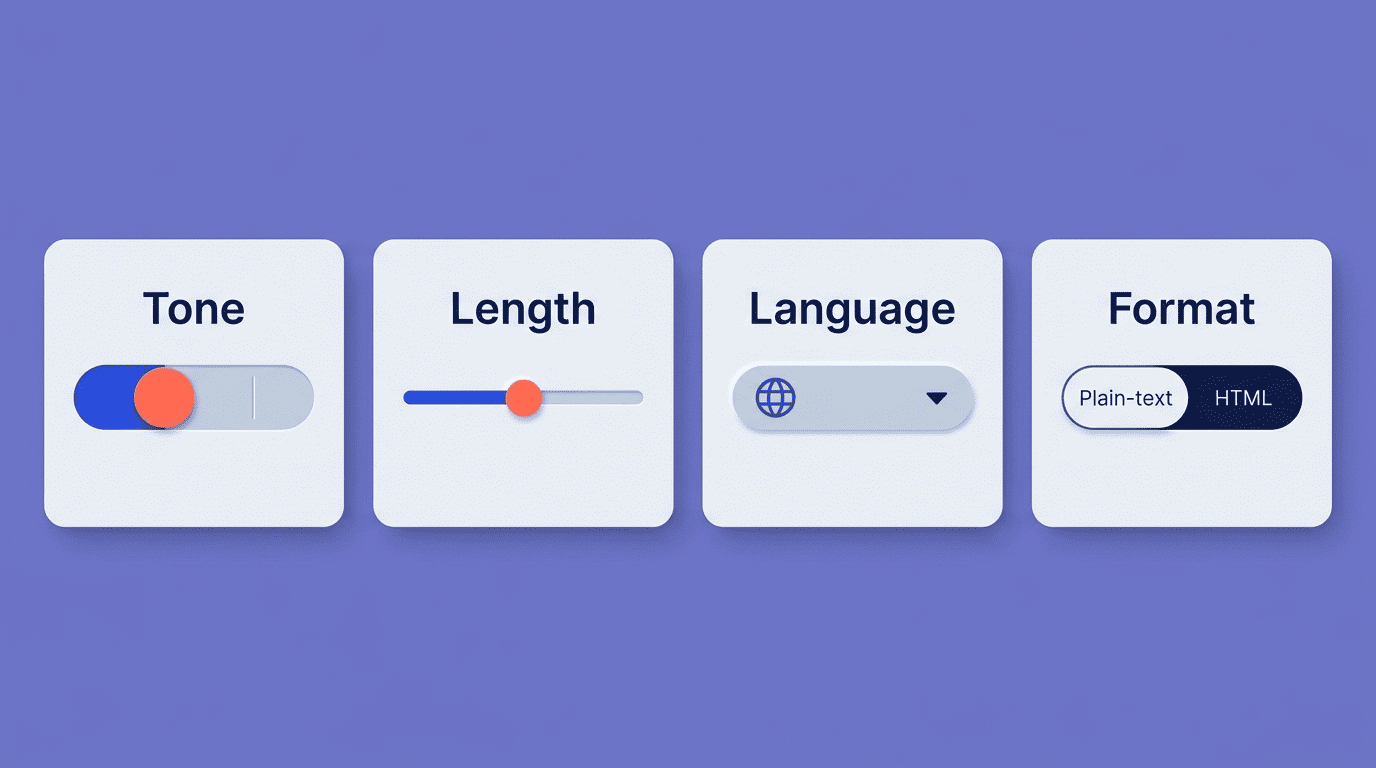
The table below summarizes how these four controls typically appear across tools:
| Control | Typical range | Example tools |
|---|---|---|
| Tone control | 3–6 presets | Mailmeteor (formal, friendly, direct, concise); HelpDesk (6 options) |
| Length control | Word count or slider | Toolsaday (50–500 word slider) |
| Language selector | Single to 30+ languages | WriteMail (30+ languages) |
| Email format | Plain text or HTML | Toolsaday |
Adding Context for Replies
Not every email starts from a blank page. When you’re replying to something, the generator needs the original message as context, not just a description of what you want to say.
Paste the email you are replying to
For replies, the most reliable method is to paste the received email directly into the tool so the draft is context-aware, then state the goal of your response separately. Both Toolsaday and HelpDesk support this pattern — pasting the incoming email plus a short instruction on what the reply should accomplish. Most generators also let you pick an email type up front, distinguishing Compose New from Reply, which changes how the tool structures its output (a reply typically opens by acknowledging the original message, while a new email opens with a subject-appropriate greeting).
Beyond the basic Compose/Reply split, several tools break email type into narrower categories so the model applies the right structure automatically:
- Confirmation
- Reminder
- Follow-up
- Outreach
- Thank you
- Feedback request
Picking the closest category before you generate saves a round of editing, since the model already knows the expected shape of that message.
Getting a Draft That Sounds Like You (and Stays Safe)
A generated draft is a starting point, not a final product. Two things separate a usable AI-written email from one that gets you in trouble: personalization and a quick compliance check before you hit send.
Personalize and review
Add voice cues to the prompt — phrases you’d naturally use, your typical sign-off, a note about how formal or casual you usually are — and personalization features on several tools fold that kind of detail into the draft automatically. Always read the draft before sending; an AI email writer can misjudge context it wasn’t given, and a quick pass catches that before it reaches the recipient. If cost is a concern, several tools operate as a free AI email writer with no signup:
- 100% free, no account required (Mailmeteor)
- Three free generations per 24 hours without an account, with a paid trial for more (HelpDesk)
- Free, no sign-up, available as a browser and desktop extension (Quillbot)
Privacy and compliance
Before pasting sensitive content into any prompt box, check how the tool handles that data. Mailmeteor states that prompts are not used for training and are not stored beyond a short abuse-prevention window. For anything commercial or promotional, the email itself also has to meet legal requirements regardless of who — or what — drafted it. In the US, that means following the FTC’s CAN-SPAM rules, which cover:
- Accurate, non-deceptive header and «From» information
- A clear, working way for recipients to opt out of future messages
- Honoring opt-out requests within 10 business days
- Identifying the message as an advertisement where the content requires it
An AI-generated draft doesn’t check any of this on its own — the sender is still responsible for compliance before hitting send.